WEEK 6:Reading Exercise

Topic:

Balunas, M. J., & Kinghorn, A. D. (2005). Drug discovery from medicinal plants. Life sciences, 78(5), 431-441.

URL:

点击以访问 Drugs%20from%20Plants.pdf

What the essay topic is?

This academic article is about the many values that medicinal plants bring. And the development of medicinal plants has brought many benefits to society.

What the authors/researchers did?

In the study, the author proposed the importance of the medicinal value of plants. In addition, they also found that some plants have anti-cancer effects. Therefore, they focus on developing relevant research. And through various fields and various research methods to achieve.

What they discovered/or created/or concluded.

They believe that their medicinal value can be found in many plants. And many plants are used as drugs and have undergone many clinical tests. They all hope to extract pure natural products that are harmless to the human body to achieve therapeutic effects.

What seems to be the research question(s) they were trying to answer?

They think that some plants cannot be used. Because some drugs may be toxic. Therefore, we are more focused on researching drugs that do not harm people.

What methods) did they use to answer the question(s)

They answer questions through exploratory research. And they used a physical composition approach to show us more clearly why it would be medicinal.

How credible do you think the paper is? (hint: look at who authors are and where and when it is published also compare what they were asking with what they did

According to Baidu Encyclopedia’s information. Balunas graduated from the University of Rochester. She majored in chemistry and biology. She then majored in Plant Ecology at the School of Environmental Sciences. And the main training is the Scripps Institute of Oceanography and the Smithsonian Tropical Research Institute of Marine Natural Products Chemistry. The field she is currently studying is the discovery of anticancer drugs from the marine clock.

Douglas Kinghorn is a Ph.D. his research area is the separation, characterization and biological evaluation of natural products from higher plant sources. He specializes in potential antibacterial, cancer chemotherapy, cancer chemoprevention, sweetness and bitter blocking effects.

Therefore, I think the papers they wrote are very credible to me.

Did you agree, or not, with what they wrote in their conclusion? Why?

I agree. Because the people or methods they study are trustworthy. In addition, they also completed this academic paper through a large amount of materials and references.

Briefly describe two things that you learnt from the paper. 

From this academic article. I learned how to write an English essay on academic research. This is very helpful for me to write such papers in the future.

Lab 20: Implementing a vSphere DRS Cluster

Process:

Task 1: Create a Load Imbalance

Here, we manually migrate all machines to a single host to simulate load imbalance.

CPUBusy is not installed, so the ESXi host is returned and the classroom file iso is loaded, so now the VM can access this disk and I can install and run CPUBusy on each VM.

Task 2: Create a vSphere DRS Cluster

Complete task 2.

Task 3: Verify Proper vSphere DRS Cluster Functionality

This can be done manually, partially or fully automatically.

And with only 50% CPU utilization, 3 VMs run multiple scripts, so more is needed.

Running more than 30 CPUBusy instances on 3 VMs, I finally received the migration proposal.

And the computer will be migrated to host 1.

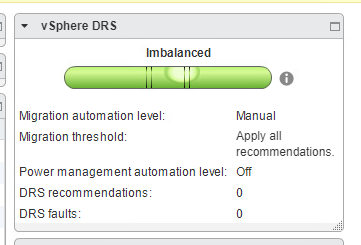
Running five virtual machines with more than 50 instances of CPUBusy finally moved the bubble out of the center.

After following the recommendations, the VM migrates and the bubble moves back.

气泡

This task requires a large number of VMs running multiple scripts to simulate Lab.

Task 4: Create, Test, and Disable a VM-VM Affinity Rule

The selected VM is running on the same or a different host.

The machine is on 2 different hosts

I am using VM1-2-thin and VM1-3-thin to do this, they are now on different hosts.

Rules are created to keep them together.

It is recommended to use an association rule.

They are now in host 2

同一主持人

The last step disables the rule

Task 5: Create, Test, and Disable an Anti-Affinity Rule

Two VMs, VM1-2-thin and VM1-3-thin are moved to the same host in task 4, and we will now create a rule to separate them.

This suggestion will be displayed and the VM will be migrated.

They are now separated

sep主机

The last step is to delete the rule.

Task 6: Create, Test, and Disabel a VM-Host Affinity Rule

The same process can create rules to specify hosts that run a set of VMs

Then add rules to associate groups

There is now a migration suggestion to apply this rule to the VM.

It is recommended to migrate VM1-3-thin to fix the rule violation. This VM is currently on host 2 and the rule indicates that it must be on host 1.

Accept the suggestions and migrate the VM.

主机规则

The VMs I defined in the rules are now on host 1.

An interesting mistake, although these rules are enabled, I can still manually migrate VM1-* to host 2, and I further created another rule that associates all VM2-* VMs with host 2.

And carefully checked all the rule settings, but they are all correct.

But I did get DRS suggesting to migrate the VM back to host 1 to fix the rule violation.

Therefore, despite the lack of compatibility errors during manual migration attempts, the rules are still working as expected.

The last part is just to disable the rules.

Critical Thinking Analysis:

The lab was actually primarily advertised in the lab manual and introduced me to the load balancing concept in vSphere and how to do this.

I am conceptually familiar with this topic due to load balancing cloud virtual servers.

The lab demonstrated manual DRS to demonstrate the steps and principles. In fact, all of this will be automated.

The only problem encountered was the number of VMs running multiple CPUBusy instances and unbalanced systems and migration recommendations. I think the CPU capacity in my environment is more than the CPU capacity that vSphere can use to demonstrate this feature in the lab. Ask them to limit the lab CPU for demonstration.

Lab 19: Using vSphere HA

Process:

Task 1: Create a Cluster Enabled for vSphere HA

Task 2: Add Your ESXi Host to the Cluster

The ESXi host is dragged to the cluster and the ESXi host 2 is moved first to make it the primary server. We don’t want to shut down ESXi 1 for testing because it will shut down our vSphere devices.

The main is 172.20.10.52, ESXi host 2. There are 6 VMs in the cluster, all 6 are protected

Task 3: Test vSphere HA Functionality

Currently, ESXi 2 has 2 running VMs, VM2-3 and VM2-2-thin

Confirm the VM on the ESXi 1 host

And the primary server has been changed to ESXi host 1

Task 4: View the vSphere HA Cluster Resource Usage

Total reserved capacity = 16.81 GHz
Use = 8.4 GHz
Available = 8.4 GHz

CPU资源

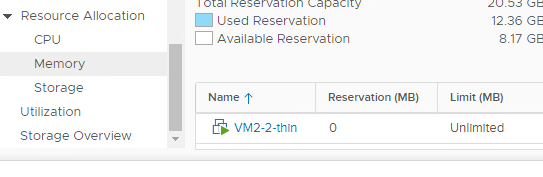
Total reserved capacity = 20.53 GHz
Use = 12.36 GHz
Available = 8.17 GHz

Mem Res

Task 5: Manage vSphere HA Slot Size

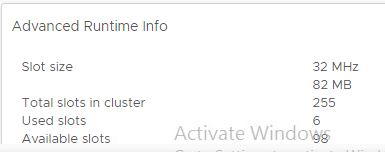
Slot summary

Slot size = CPU 32 Mhz memory 82 MB
Total = 255
Use = 6
Available = 98
Failover = 151
Set the VM CPU’s reserved value to 512 MHz

Slot has changed

老虎机

We now have a higher CPU size = 512, which means fewer available slots.

We next configure a fixed slot size.

截图(189)
截图(188)

VM2-2-thin requires 2 slots.

Available CPUs and slots have also been changed to CPU 300 GHz

Slots2

Finally, we undo all these changes and reset to the default by removing the fixed slot.

Slots3

Task 6: Configure a vSphere HA Cluster with Strict Admission Control

The cluster memory uses 0 client, please note that I have not shut down my server device, so the memory usage is still very high.

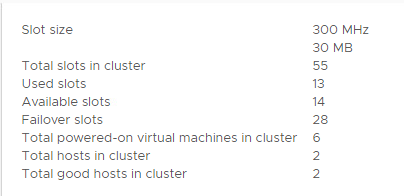
Total = 28
Use = 15
Free = 12

The lab cluster has no server devices, so memory usage is low, but the te cluster itself uses some memory even if it is not running.

Edited the memory resource settings of 2 VMs

The total slot is different from the lab, it’s not N/A because I still run the server device.

New memory slot size

Slots4

Since the 300MB reserved space is set for the now started VM, the slot memory size is 335MB. Use the maximum reservation plus some of the cluster’s cost calculations.

The number of available slots has been reduced from 255 to 62 because each slot now retains 300MB of memory.

Slots5

After the second VM is powered up, the slot is reduced by one, but the size is the same. Since the slot is available, the machine can be turned on.

Task 7: Prepare for the Next Lab

You can undo this lab’s changes by simply taking a break and proceed to the next experiment, so there’s no need to take a screenshot here.

Critical Thinking Analysis:

Some of the tasks in this lab are different from labs. Task 6 needs to explore the cluster with all virtual machines. Obviously we can’t shut down the vSphere Server Appliance because e is using it to visualize and control our ESXi hosts and VMs.

Re-emphasize the problem of completing laboratories designed for different environments.

In other words, the subject involved in high availability and failover is important to keep the production environment up and running to keep customers accessing the system – this is important for any company

Lab 14: Managing Virtual Machines

Process:

Task 1: Unregister a Virtual Machine from the vCenter Server Appliance Inventory

VM2-3 is currently located in Datastore-Local01-1.

Task 2: Register a Virtual Machine in the vCenter Server Appliance Inventory

We run the register wizard and its back.

Task 3: Unregister and Delete Virtual Machines from the Datastore

Right-click on the VM and delete the simple task of the computer that was not started.

Task 4: Take Snapshots of a Virtual Machine


Next, we will take a snapshot of CPUBUSY. As shown in Lab 3, copy the CPUBUSY file to the desktop by mounting ClassFiles.iso.


Go back to the vSphere Web Client, right click on your VM and select Snapshots > Take Snapshots

Task 5: Revert the Virtual Machine to a Snapshot

Power on the VM and open the console. After logging in to the VM, you will see that the state of the computer is the state of IOMETER and CPUBUSY deleted.

Now go back to the Snapshots tab and select With cpubusy snapshot. Go to “All actions” and select “Restore to.” Leave the other configuration unchanged and click Yes to confirm the restore operation. The VM will then shut down and resume the state of the snapshot.

Task 6: Delete an Individual Snapshot

Return to the VM’s Snapshots tab, the You are here pointer is located under With cpubusy snapshot

The virtual machine is still open, and the snapshot under the deleted virtual machine moves up one level.

Task 7: Delete All Snapshots

In the Virtual Machines and Templates tab, right-click the virtual machine and choose Snapshot > Delete All Snapshots. Click Yes to confirm the deletion.

Critical Thinking Analysis:

A simple lab that demonstrates the functionality of a snapshot to return the machine to a previously saved state.

Ideal for backups, although only local on-site backups are available, so there is no benefit to disaster recovery.

Lab 13: Migrating Virtual Machines

Process:

Task 1: Migrate Virtual Machine Files from the Local Storage to the Shared Storage

Use VM2-2 on ESXi host 2 with a storage name of 172.20.10.51, the ESXi host.

Now in my shared storage, called Shared-VMFS

Task 2: Create a Virtual Switch and a VMkernel Port Group for vSphere vMotion Migration

Review the information and click Finish. Now you can see in the virtual switch pane that vSwitch2 is now created.

Task 3: Perform a vSphere vMotion Migration of a Virtual Machine on a Shared Datastore

Make sure your VM does not have any files installed on the CD/DVD drive. Go to Hosts and Clusters, right-click on your VM, and go to Edit Settings. Check CD/DVD drive 1 and make sure to change it to a client device. Also verify that the VM is already in the VM network you created and click OK. Perform these steps for all VMs.

Task 4: Perform a Compute Resource and Storage Migration

I performed this task by successfully migrating VM, VM1-2-thin from ESXi host 2 to host

Before you finish, review the summary and click Finish. Now you can check the Recent Tasks pane to see the progress of the migration, and the VM is now moved to another ESXi host.

Critical Thinking Analysis:

Once the storage capacity problem is resolved, the process is relatively simple. I had to remove the heavily provisioned virtual machines and replace them with thin provisioning to have enough storage on the ESXi hosts available for migration.

For future reference, any new VMs created should remember to change the disk to thin provisioning.

Lab 12: Modifying Virtual Machines

Process:

Task 1: Increase the Size of a VMDK File

Hard Disk is 30GB.

Expanded to 32GB

Task 2: Adjust Memory Allocation on a Virtual Machine

Edit the settings and change the memory to whatever value you need.

Task 3: Rename a Virtual Machine in the vCenter Server Inventory

  1. The folder name for the VM2-3 virtual machine is Hot-Clone, which is the original name of this virtual machine.

Task 4: Add and Remove a Raw LUN on a Virtual Machine

You must select the target LUN and click OK.

A new hard disk will appear and the arrow will expand. Make sure that the location is stored with the virtual machine and change the compatibility mode to virtual. If you are done, click OK.

We will now configure the newly added disk on the Windows machine. Power on the VM and open the console. Once logged in, open “Start” and right click on “Computer” to find “Manage”. The Computer Management window appears, then click Disk Management on the Navigator pane. As you can see, a new unallocated disk will appear, which is marked on disk 1.

We checked that the disk could be successfully created on a Windows machine. We are now trying to remove it from the machine. First, right click on the VM to shut down the machine and go to Power> Power Off. Then right click on the VM again and go to “Edit Settings”. Click the X icon to the right of Hard Disk 2, then select the Remove files from data store check box, and then click OK. The hard drive is now deleted.

Lab 12: Wi-Fi Access Point Security

1.In your post review section 3 Security and Access Management and discuss a suitable wireless security configuration from Figure 3 that can provide authentication, authorisation and encryption for the Wireless LAN in a large school.

As can be seen from the given figure 3, whether providing identity authentication, authorization or encryption will not be disclosed in public places.

Equipment certification provides a secure online environment during school use. This gives students the right to access the network. However, the device is authenticated using WPA2-PSK.

In addition, many schools encounter tips such as remembering passwords or sharing passwords during the process of accessing the network. Although this method is relatively convenient and easy to operate. But if there are loopholes or other viruses. Will reveal passwords and threaten the network environment

Many medium or large learning programs use WPA2 Enterprise. Mainly through user authentication and authorization and using 802.1x / EAP for authentication. The benefit of this is that it can improve security.

Support for TLS and MS-CHAP will provide users with PKI and improve network security.

Small schools should have WPA2 with PSK and update their passwords regularly. The benefit of doing so saves time by configuring relative content. And can also provide a good internet environment

For large and medium schools. Especially users who have applied BYOD. The problem they have is that they must be authenticated. This is why 802.1x/ EAP WPAS2 Enterprise will be the best approach. The methods used by different types of schools are different. Should choose the most appropriate method to reduce time and cost but achieve the purpose of improving safety performance

2. In your post discuss common Wireless LAN security practices and issues for a large school. See, for example, section 6.1-6.3 Common Security Issues and Management.

For the large school network, we must first pay attention to a few points. First, what can lead to network security threats, vulnerabilities, risks, etc.

First, in the network of large schools. Most students have their own devices such as cell phones, laptops and more. If the network is not secure, the student’s personal information will be leaked. This is one of the main threats. Therefore, we can use WPA2 Enterprise with user authentication. This is suitable for use in large school networks. Using this feature will ensure that students can use the network to securely access and surf the Internet.

We can also use it with WPA2 Enterprise by using AP hardware. It can play a dual protection role in the verification of identity. This can reduce network risk to a large extent.

An AP is a so-called wireless access point that is used for wireless switches in wireless networks and is also the core of wireless networks. From this perspective. AP is not very easy to detect. It is used in some building locations to ensure that there is a good signal to cover the desired area. For example, in some shopping malls or on airplanes, there are schools.

Lab 11: Using Templates and Clones

Process:

Task 1: Create a Virtual Machine Template

Create a template from an existing VM and rename it

Task 2: Create Customization Specifications

Task 3: Deploy a Virtual Machine from a Template

The virtual machine is deployed and VMware’s tools are running

截图(122)

Task 4: Create a Content Library

This is a simple operation

Task 5: Clone a VM Template to a Template in a Content Library

Copy content to the content library

Task 6: Deploy a Virtual Machine from a VM Template in the Content Library

Task 7: Clone a Powered-On Virtual Machine

Critical Thinking Analysis:

Show us a repetitive lab demonstrating the different ways to create a VM.

Lab 10: Accessing NFS Storage

Process:

Task 1: Configure Access to NFS Datastores

Select NFS in the datastore type.

Task 2: View NFS Storage Information

We can access NFS data storage from ESXi host 1

  • The datastore type = NFS 3
  • The capacity = 99.51 GB
  • Used Space = 15.1 GB
  • Free = 84.41 GB

Critical Thinking Analysis:

Create shared storage directly.

However, it does require a variety of settings in the server to mirror the settings of VMware Labs, and the environment is different again.

Lab 9: Managing VMFS Datastores

Process:

Task 1: Rename a VMFS Datastore

Renamed to “Local01-1”

Task 2: Create VMFS Datastores for the ESXi Host

Create a new data store called VMFS-2

The current storage capacity I created is 33.25GB, as shown in the image above.

Task 3: Expand a VMFS Datastores to Consume Unused Space on a LUN

Can see an increase in capacity

Task 4: Remove a VMFS Datastore

Click Delete and delete it, now recreate it for the next task.

Task 5: Extend a VMFS Datastore

This step cannot be applied because there are no other LUNs in the datastore.

Task 6: Create a second Shared VMFS Datastore Using iSCSI

Use shared LUN

通过 WordPress.com 设计一个这样的站点
从这里开始